
 ·
7 minute read
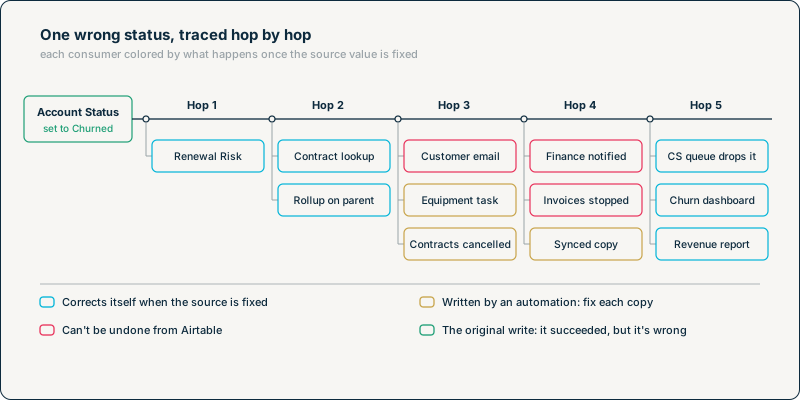
A wrong value rarely stays where it lands. In Airtable, a single field can feed formulas in the same record, lookups and rollups in linked records, automations that write to other tables or send messages, synced tables in other bases, external systems that read it through the API, and the interfaces people use to decide what to do next. Each of those can pass the value on again.
The set of everything one field can reach is its blast radius. This post is a method for tracing it, field by field, and for deciding where a bad value should stop.
InAir's guide to running Airtable inside complex system landscapes puts this as the fifth question to ask of any integration: "How far can a bad update travel before it's contained?" The answer is almost always larger than expected, and the reason is structural: each consumer of a field has consumers of its own.
What This Adds to a Topology Map
InAir's post on Airtable spaghetti architecture diagnoses how bases and systems get tangled together and uses an ERD as an active diagnostic tool for how they connect. That view tells you where data can flow. A blast-radius trace works one level down: it follows one field, through everything that reads it, until the trail ends.
The two answer different questions. A topology map shows that the CRM, the Accounts base and the Finance base are connected. A trace shows that changing Account Status in the Accounts base will, within one chain of events, email a customer, cancel their contracts and stop their invoices.
None of this requires more than one system. A single base with linked tables and a few automations can produce a long chain on its own. Integrations extend the chain past the edge of the base, where it gets harder to see.
A Worked Trace: One Wrong Status
A CRM integration sets Account Status to "Churned" on an account that is still active. The write succeeds. Here is where that value goes in a typical account-management setup. Each hop is something the value reaches, either directly or through an earlier hop.
Hop 1: the same record. A formula field, Renewal Risk, uses Account Status and now shows "Lost."
Hop 2: linked records. Each Contract record looks up the account's status and now shows "Churned." On the parent company record, a rollup that counts active accounts drops by one.
Hop 3: automations. An automation with a When record matches conditions trigger watches for Status = Churned. The automation does three things:
- sends an offboarding email to the customer's primary contact;
- creates a task for the account manager to collect equipment;
- updates every linked Contract to Status = Cancelled.
Hop 4: consumers of hop 3. The third action is a write, so it starts its own chain. When a contract's Status changes to Cancelled, it triggers a second automation, which notifies Finance. A billing integration reads cancelled contracts on its next run and stops the invoice schedule. A synced copy of the Contracts table in the Finance base receives the updated contract status, and whatever the Finance team built on that copy acts on it too.
Hop 5: people. The account drops out of the customer success team's interface because the queue shows active accounts only. The churn dashboard gains a row. The weekly revenue report drops the account's revenue.
One incorrect value, entered once, has now reached a customer's inbox, an invoice schedule, another team's base, and several reports. Most of it came from a single automation, and what the Finance team built on its synced copy is a part of the trace the Accounts team may never have seen.
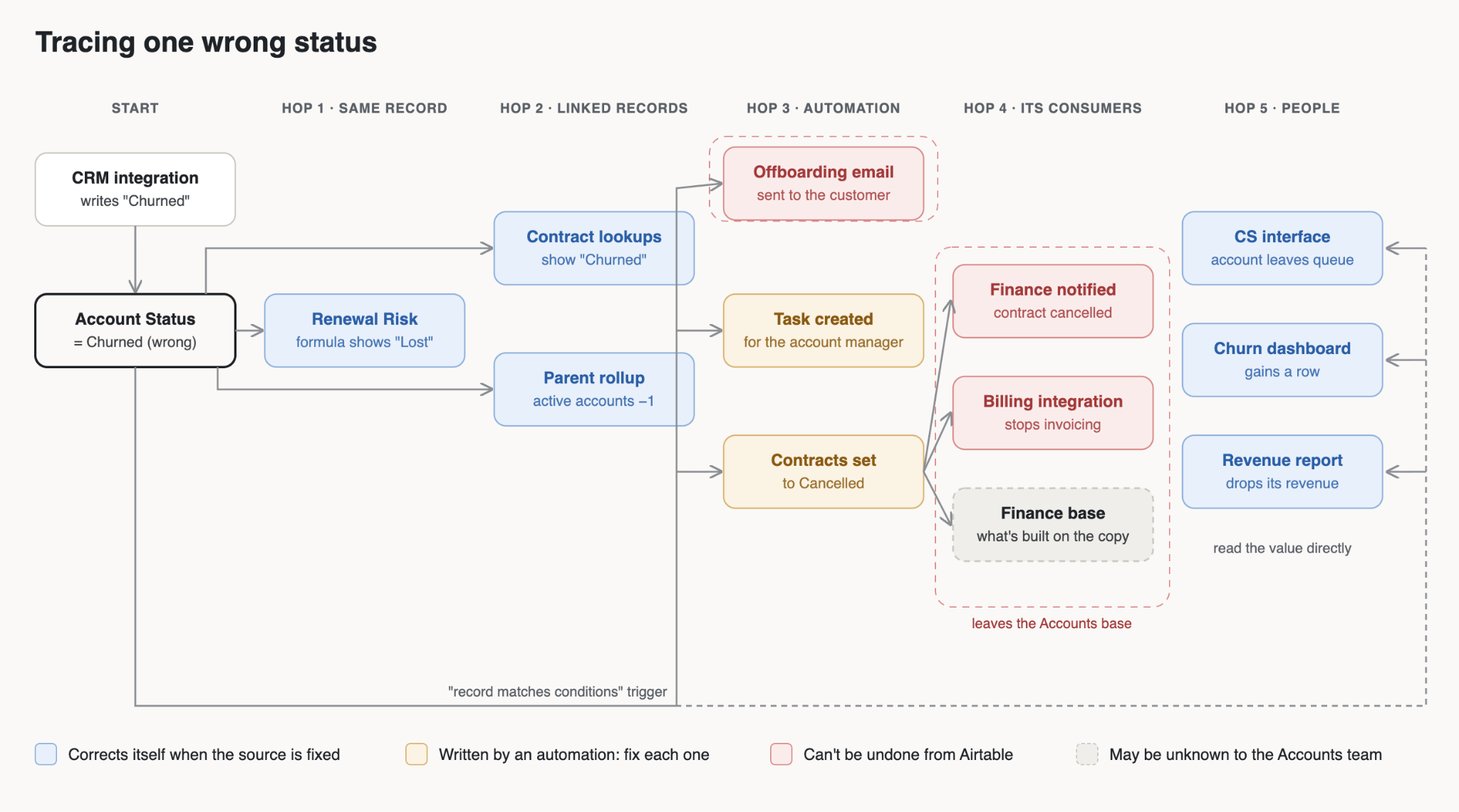
The worked trace, colored by what happens when the source value is fixed.
The Tracing Method
The worked trace follows a pattern you can repeat for any field.
1. Start with Airtable's dependency list
Airtable's field manager has a Dependencies view, available on all paid plans to owners and creators. It can be filtered by automations, configurations, fields, interfaces, syncs, and views. That list covers hop 1, the parts of hop 2 inside the base, and the automations, syncs, interfaces, and views that read the field directly.
Also search the code of any scripts, in automations or extensions, for the field's name and ID. InAir's guide to controlling enterprise Airtable sprawl includes scanning all active scripts, formulas, and automations in its change-management protocol, along with identifying every downstream base that subscribes to the table.
2. Repeat for every dependent field
Every formula, lookup, and rollup on the list is a new starting point. Run the same check on each one, and keep going until the list stops growing. This is where the trace grows: a field with four dependents, each with three of their own, already has sixteen consumers across two levels: four direct and twelve behind them. InAir's post on historical bloat describes the same structure from the performance side, treating every formula, rollup, lookup, and interface element in a base as part of one dependency graph.
3. Follow what every automation writes
For each automation on the list, look at its actions, not just its trigger. Every field an action writes to becomes a new starting point, in the same table or another one. Mark any action that sends something outside Airtable, such as an email, a Slack message, or an HTTP request sent from a script action.
Watch for automations that write to fields another automation watches. Look for automations that write to fields another automation watches. One automation setting off another is common, and each time it happens the trace gains a hop, as it did when the contract status change in hop 4 triggered the Finance notification.
4. Leave the base
External systems that read the field through the API aren't among the object types the dependency list covers. List every one of them: API integrations, middleware scenarios and webhook subscribers. The tokens, service accounts and webhooks with access to the base are a better starting point than anyone's memory.
For synced tables, the trace continues in the destination base. InAir's guide to enforcing data contracts points out that destination creators can build formulas, views and automations on data they don't own, while the source owner has no visibility into those dependencies. The practical way to trace that part is to ask the destination base's owner to run the same method on their side.
5. End with the people
Finish with the interfaces, views and reports where people meet the value. Look for two kinds: the ones where users can read or write into the field, and the ones that use it as a filter, sort, or grouping criterion. The second kind is easier to miss, because a wrong value there changes which records someone sees, or where they appear, rather than what a record says, which is how the account in hop 5 dropped out of the customer success queue. These hops often do the most damage because nothing on screen marks the value as wrong.
Recording the trace
For each consumer, record the hop it sits on, what it does with the value, whether that can be reversed, and who would notice first if it went wrong. The trace diagram above shows the reversibility part of that record for the worked example, with each consumer colored by what happens when the source is fixed: what corrects itself, what an automation wrote and has to be fixed one copy at a time, and what can't be undone from Airtable at all. That last group is where boundaries matter most.
Why Cleanup Costs More Than Containment
Once a bad value has spread, undoing it is manual work at every hop. Airtable doesn't offer a single rollback that reverses a chain of changes. Record revision history shows who changed a record and when, including which automation made a change or whether it came from a sync or an API call. In most cases, it also shows the previous value, which makes it useful for finding what each record should be restored to, but it's view-only, so the restore itself is a separate edit.
The hops also differ in how they recover:
- Computed fields correct themselves. A formula, lookup or rollup reflects the current source value, so fixing the source fixes the field.
- Copied values don’t. A value that an automation wrote into another record stays wrong until someone finds and fixes each copy. This is why replacing an automation that copies a value with a lookup that shows it makes the trace easier to reverse.
- Automations may or may not run again. It depends on how each one is triggered. The hop 3 automation only runs when an account changes into Churned, so setting it back to Active won’t run it again, and the contracts it cancelled stay cancelled. An automation that runs whenever a rollup changes, such as one that sends the parent account’s value total to a billing system, will run again and send the corrected total.
- External actions can’t be taken back from Airtable. An email to a customer can’t be recalled. A billing system that has stopped invoicing has to be corrected in the billing system.
Where to Put the Boundary
A containment boundary is a point where a bad value stops, or waits for a check, before it reaches the next hop. AWS's reliability guidance defines the idea in general terms: fault isolated boundaries "restrict the effect of a failure within a workload to a limited number of components."
In Airtable, the trace shows where boundaries pay off: before any hop that can't be undone, and at the edge of the base. Each of the six below is something you build, and the numbers match the diagram.
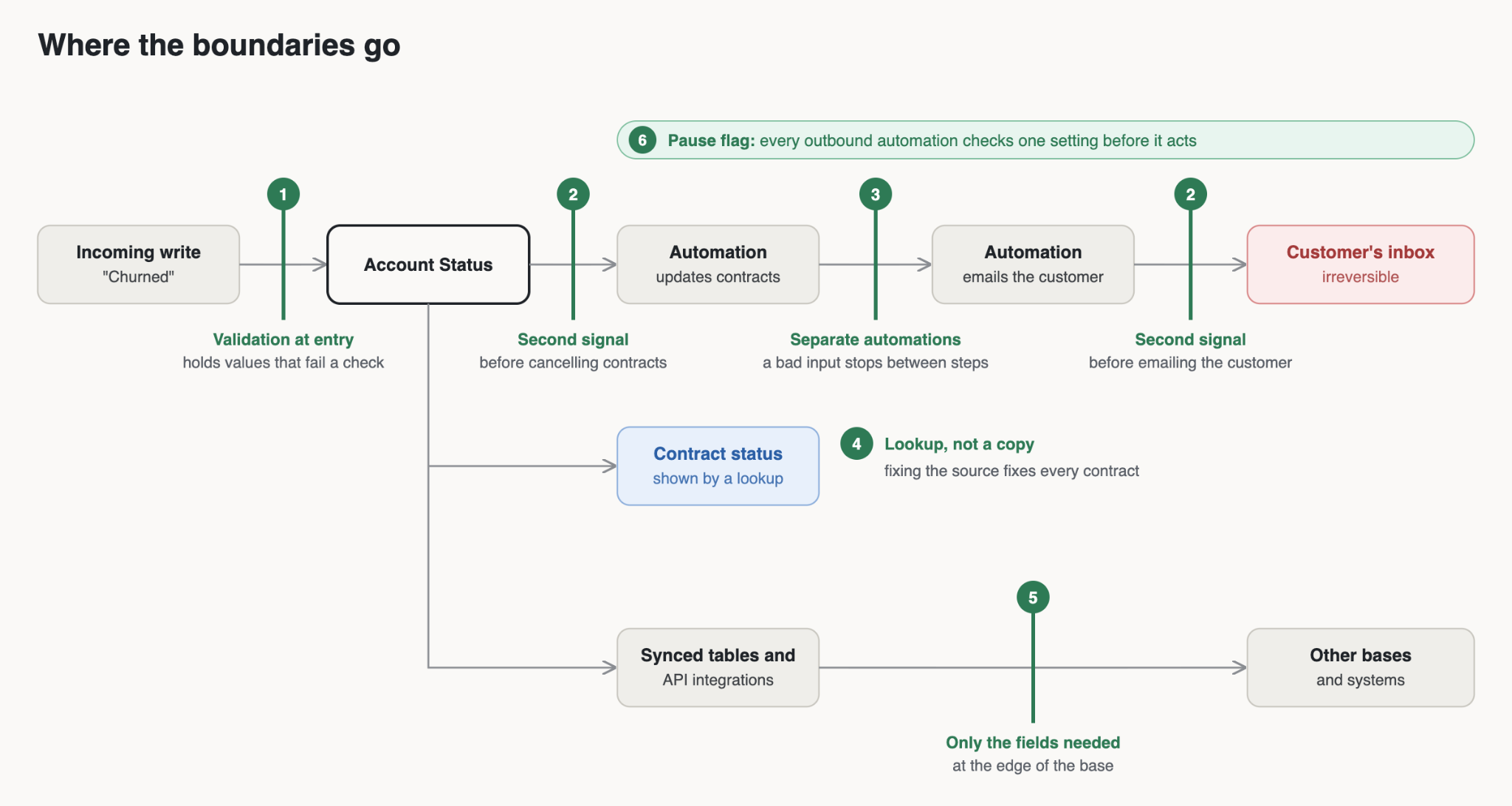
Six boundaries placed on the path of the same wrong status.
- Validation at entry. A validation step holds incoming writes in a pending state until they pass defined checks. It stops values that fail a check, such as Churned on an account with active contracts, before they reach hop 1.
- A second signal before anything irreversible. An automation that emails a customer or cancels contracts runs only when a second condition is also met, such as a confirmation field set by a person or a check that the status has held since the last review.
- Separate automations. A multi-step workflow split into separate automations, each with its own trigger and conditions, can be stopped between steps instead of running end to end on one bad input. This follows the argument InAir makes in The God Automation: a single workflow that updates statuses, writes to other tables and sends messages has no boundary inside it.
- A lookup, not a copy. The contracts in the worked trace show the account's status through a lookup, which is why that part of the trace recovers on its own. An automation that copied the status onto each contract would leave every copy wrong after the source is fixed.
- Only the fields that are needed. Syncing and sending only the fields downstream consumers use keeps the value away from systems that never needed it.
- A pause flag. Every outbound automation starts by reading one setting in a configuration table with a Find records step, and stops if it's set. One change pauses further outbound actions from automations while someone works out what happened.
Not every field needs every boundary. Fields with a short trace and nothing irreversible on it can go without. Fields whose trace ends in a customer's inbox or another team's base are the ones to protect first.
In InAir's Integration Load framework, validation at entry sits on the exposure side, because it controls how often a bad value gets in at all. The other boundaries depend on the framework's two containment factors: ownership, so there's a defined correct value to restore, and failure visibility, so someone learns that a boundary held something back.
When to Trace
Tracing every field in a base isn't necessary. Start with the fields that other systems write to, the fields that trigger automations with external actions, and any status field that drives what people see in an interface. Run the trace again when an automation, a sync or an integration that reads the field is added or changed, because the trace is only as current as the last time someone ran it.
If you'd like to know which of your fields would travel furthest, and where each one should stop, Schedule a Discovery Call with InAir and we'll map the boundaries with you.