
 ·
6 minute read
·
6 minute read
Securing an enterprise database requires more than just locking individual fields or validating records. As established in the Enterprise Airtable, visual boundaries are easily bypassed if user access is not structurally guided. True security requires separating the database structure from user interaction and controlling the routes users take through your system.
Rather than treating Airtable Interfaces as passive visual dashboards, operations leaders deploy them as Controlled Interface Pathways: structurally enforced navigation routes that dictate exactly how data enters, moves through, and exits your database.
By transitioning standard users to Interface-Only permissions (as detailed in Why Base-Level Permissions Create Enterprise Vulnerability), you block direct base access and force all data operations through specific, validated front-end routes. This article provides a step-by-step technical guide to designing these navigation flows, task queues, and data exits.
1. Designing Task-Driven Queues (Eliminating Monolithic Lists)
A common interface design failure is creating a monolithic dashboard that displays every record in a database. When operators are confronted with a massive list of records, they often lose track of their specific tasks, edit records out of order, or modify data that belongs to other departments.
To prevent this, you should design Dynamic Task Queues that filter records automatically based on the logged-in user and the operational state:
- Current User Filters: In the Interface layout configuration, set the record list filter to match the logged-in user (e.g., Assigned_To = Current_User). This ensures that when an operator logs in, they only see the records assigned to them.
- Status-Based Routing: Filter list views to only show records that require active work (e.g., Status = 'Pending Review').
- The Queue-Clearing Mechanic: Configure the list filters so that once an operator completes their work and clicks an action button to update the record status, the record immediately falls out of their view because it no longer meets the filter criteria. This creates a clean, inbox-zero experience that guides operators to their next task.
To learn more about setting up these filters, see the official Airtable Filter Records Documentation.
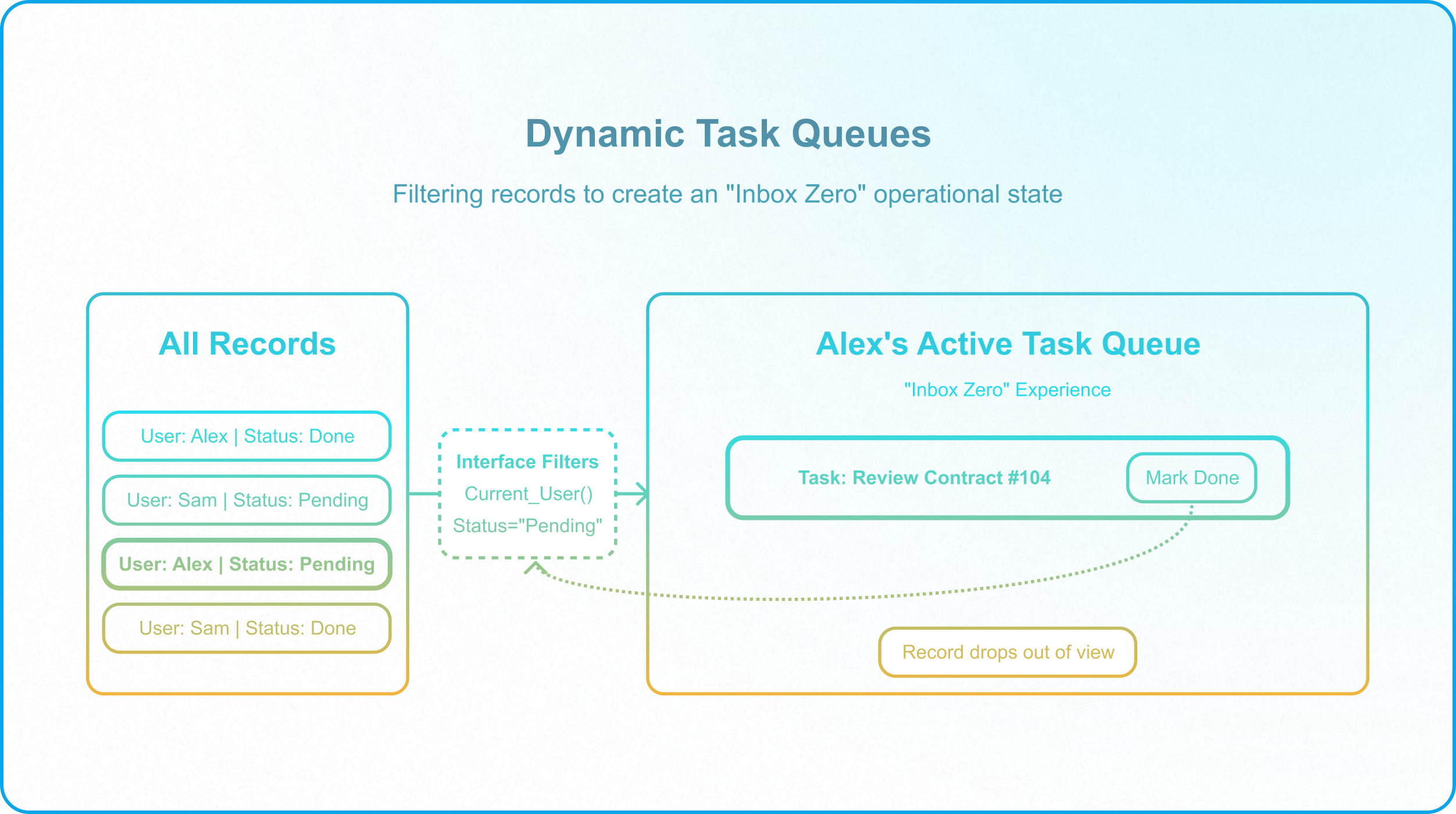
Figure 1: Wireframe layout of a governed database intake form in an Airtable Interface, showing required inputs that must be met before a record enters the operational queue.
2. The List Layout with Enabled Details (Orchestrating Operator Focus)
When operators review or update record details, exposing dozens of fields on a single screen creates cognitive noise and accidental data modifications.
To structure this interaction, the most common and robust approach is to configure a List Layout with "Click into record details" enabled. This functions as the core cockpit for your workflow:
- List View Focus: The list table occupies the center of the main page, displaying a clean queue of active items.
- The Details Drawer: Clicking any record in the list opens the record details. By default, this opens on the right side as a side sheet/drawer, overlapping the rightmost fields of the main list table.
- Advanced Detail Pages: For complex workflows requiring significant operator focus, you can configure record details to open as a new full-page view or even in a new browser tab.
- Alternative (Record Review Layout): Airtable also offers a native Record Review layout (side-by-side list on the left, details pane on the right). However, this layout is less commonly used by operations leaders because its features are highly limited; for instance, the detail side pane in a Record Review layout does not support organizing fields into visual tabs.
Restricting Access: The Multi-Interface Permissions Workaround
A common governance mistake is attempting to configure Role-Based Tab Visibility or role-based field restrictions within a single interface page. Under Airtable's hierarchy (Base -> Interface -> Page -> Tab), permissions cannot be applied below the Interface level. If a user is granted access to an Interface, they automatically gain access to all pages and tabs inside it.
To enforce strict role-based data isolation on detail screens, use the Multi-Interface Custom URL Button Workaround:
- Separate the Interfaces: Create separate Interfaces for different departments (e.g., a General Operations Interface and a Finance Interface). Since permissions are set at the interface level, restrict access to the Finance Interface to only members of the Finance User Group.
- Deploy "Go to URL in record" Action Buttons: On the main list page or general record details page, create action buttons like "View Financials" or "View Legal Review" configured as a "Go to URL in record" action, with the formula field selected as the URL source.
- Build Custom URL Formulas: Configure these action buttons using a custom URL formula to open the target record detail page hosted on a separate, restricted interface. The formula builds a URL dynamically, passing the active record's ID:
CONCATENATE("https://airtable.com/", "appXXXXXXXXXXXX/pagYYYYYYYYYYYY?detail=rec", RECORD_ID())
- Add Custom Back Buttons: Since native back navigation does not cross interfaces, you must place a custom "Back" action button on the destination detail page to redirect the user back to the main general interface.
- Access Enforcement: If an unauthorized user clicks the "View Financials" button, Airtable's permissions gate will block them, displaying a native "Access Denied" page.
- Simulated Tabs: To maintain a cohesive user experience, place these action buttons horizontally at the top of the detail pages to visually mimic navigation tabs.
For details on configuring list and detail screens, consult the official Airtable Record Review Layout Guide.
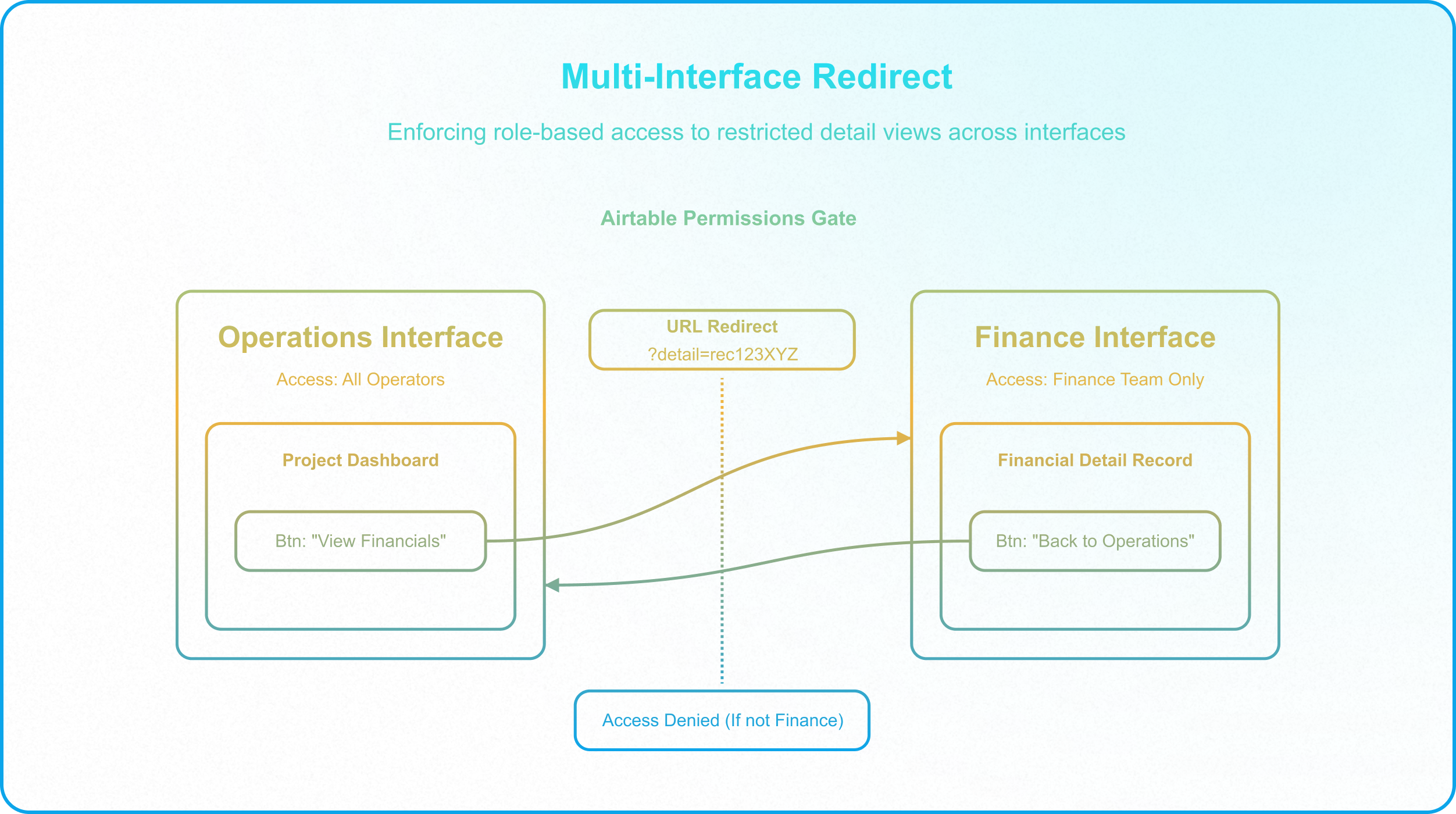
Figure 2: Flow diagram of the multi-interface redirect workaround for role-based detail views.
3. Governing Data Exits (Egress Pathways)
Data governance is not just about how data enters your database; it is also about how data exits (data egress). If you share raw database access, users can export your entire dataset as a CSV or sync it to their personal bases, creating severe data leaks.
To secure data exits, you must build Egress Pathways that control what data can leave your base and how:
1. Locked Exports
Because all base-level collaborators in Airtable natively possess the ability to export any table or view as a CSV, you cannot disable exporting for base-level users. The only way to lock down raw database exports is to invite operational users strictly as Interface-Only collaborators (denying them access to the base grid).
If interface-only users need to download specific data (for example, generating a partner SKU sheet), build a dedicated Export Page inside the Interface:
- Set the page to a list-based layout.
- Disable inline editing for the entire page (no need to do it field by field) to prevent operators from accidentally modifying records from the export screen.
- Filter the columns to display only the specific fields cleared for export. Make sure to keep Internal IDs (such as Airtable Record IDs) as they are crucial for downstream mapping and accurately identifying records, while hiding unapproved sensitive fields or private data.
- Optionally, enable filtering on the list view so that users can define a subset of the available records they want to export rather than exporting all of them.
- Restrict access to this page so only authorized roles can view it and use the "Export" button.
2. Webhook-Gated Data Actions
Instead of giving third-party systems or external partners direct API access to your base (which exposes your entire database schema and all records), use Action Buttons to trigger webhooks.
- Create an Action Button (e.g., "Send to ERP") that runs a background automation.
- The automation sends a specific, scoped JSON payload containing only the required record details to an integration platform (like Make or Zapier) or your internal API.
- This keeps your underlying database structure completely hidden and ensures data is only sent out after validating the record payload.
For details on configuring action buttons and button-triggered webhooks, consult the Airtable Interface Buttons Guide. This setup ensures that data is validated and cleaned before leaving your database, preventing incomplete payloads from breaking downstream integrations.
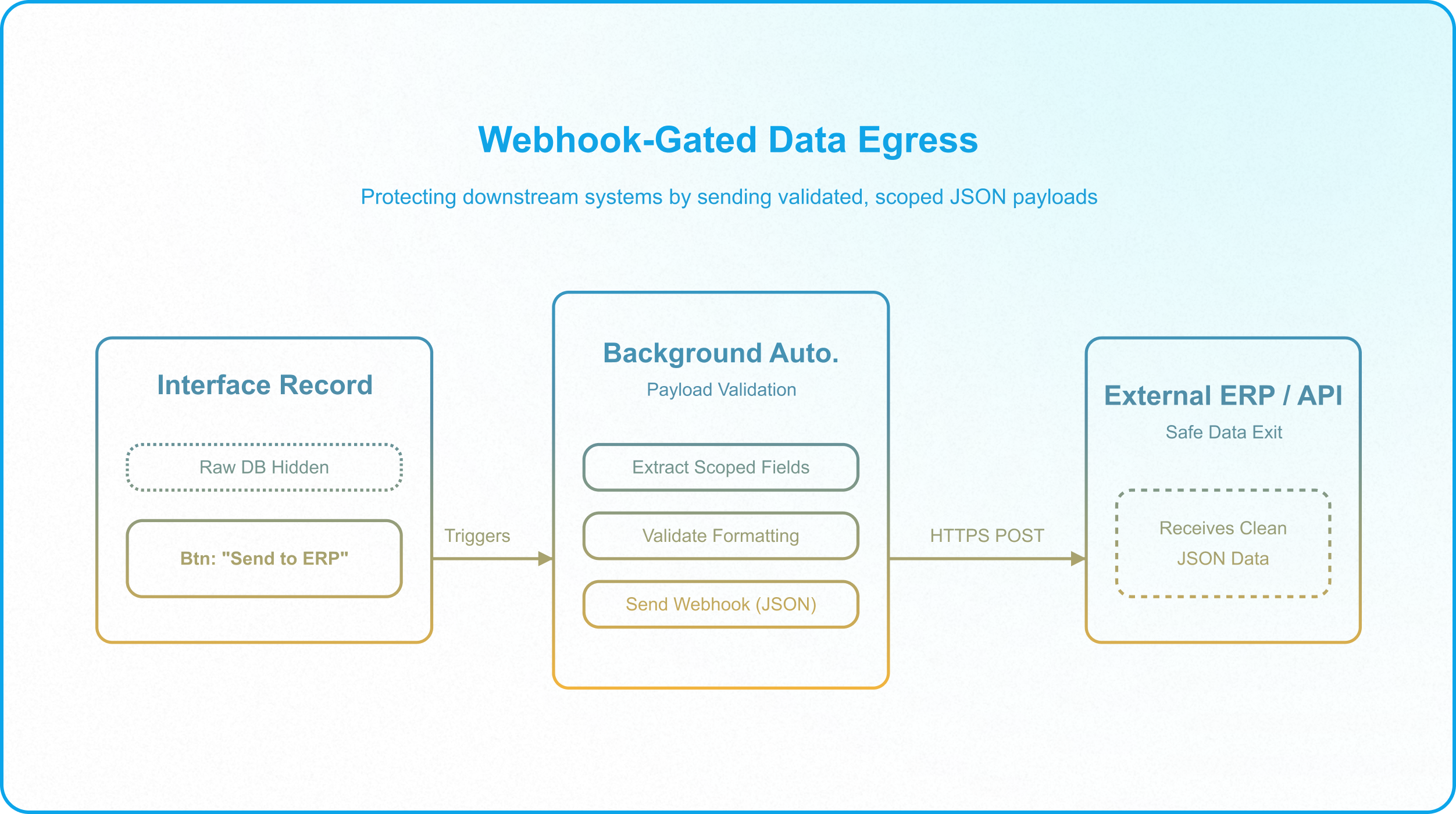
Figure 3: Wireframe showing an Interface page with action buttons and tabbed navigation. Actions are restricted to webhooks to protect downstream data security.
4. Building Closed-Loop Approval Pathways
You can combine these queue, layout, and button configurations to build a secure, closed-loop approval system. For a standard product launch pipeline (which is governed by the field-level ownership mapped in Data Responsibility Map), the approval route is structured as follows:
- Submit for Approval: A Product Ops operator completes their task in the Product Ops Portal. They click a validation button, which runs a background check. If valid, the script updates the status to Pending Approval. This immediately clears the record from the operator's active queue.
- Manager Review Queue: A manager logs into a specialized Approval Hub page. This page is filtered to show only records where Status = 'Pending Approval'. The manager reviews the tabbed record details.
- Status-Based Record Locking: The manager clicks an "Approve" button, which updates the record's status. Once approved, the record is automatically routed out of the manager's view, ensuring the queue remains clear. Because no edit-enabled interfaces display records with this status, and users lack raw base access, this status change effectively locks the record data from further modifications.
Restricting Access to the Underlying Core
By routing all users through these validated, role-scoped pathways, you configure Airtable to act as a governed business application rather than an open spreadsheet. However, these pathways are only secure if you enforce an Interface-Only Mandate.
Make sure all general collaborators are completely removed from the backend database collaborator list and invited strictly as Interface-Only collaborators. This blocks their ability to click "Open base," preserving your data models and ensuring your validation gates and export pathways cannot be bypassed.
If your team is managing a growing Airtable database and needs to deploy secure, governed interface layouts, Schedule a Discovery Call with InAir. We audit your bases and build structural pathways that protect your data integrity as your operations scale.