
 ·
5 minute read
·
5 minute read
Designing a robust access control model is only the first phase of securing your databases (as outlined in the Scalable, Secure Airtable Architecture). While an Airtable Access Matrix defines which user roles have access to specific bases, scaling operations require a granular mapping of field-level ownership and edit authority.
When multiple departments—such as Product Operations, Marketing, Legal, and Finance, collaborate within the same database, flat write privileges inevitably lead to data collisions, unauthorized edits, and broken automation triggers.
To protect your data, you should build a Data Responsibility Map: a framework that defines which department owns which specific fields inside a database, and enforces those boundaries using custom interfaces. This article provides a step-by-step guide to designing and implementing a Data Responsibility Map in Airtable.
Access Matrix vs. Data Responsibility Map: The Difference
Access Matrix vs. Data Responsibility Map: Protecting Downstream Syncs. Confusion between base-level access and field-level write authority is the primary cause of downstream integration failures. To secure your database and prevent synced systems (like Salesforce or HubSpot) from receiving dirty data, you must separate your governance into two layers:
- The Access Matrix (Macro-Level Permissions): Defines which user roles and API service accounts can access the base, answering: Is the Salesforce sync allowed to read/write to the Inventory base?
- The Data Responsibility Map (Field-Level Ownership): Restricts the write-path of specific fields to their owning department, answering: When a record is in 'Pricing Review,' is the Marketing team blocked from changing the MSRP field?
Without a Data Responsibility Map, anyone with "Editor" access to update copy can accidentally overwrite a SKU or unit cost. While your Make/Zapier integration logs will still show a "green" successful run, the downstream payload is corrupted, breaking your cross-system pipeline.
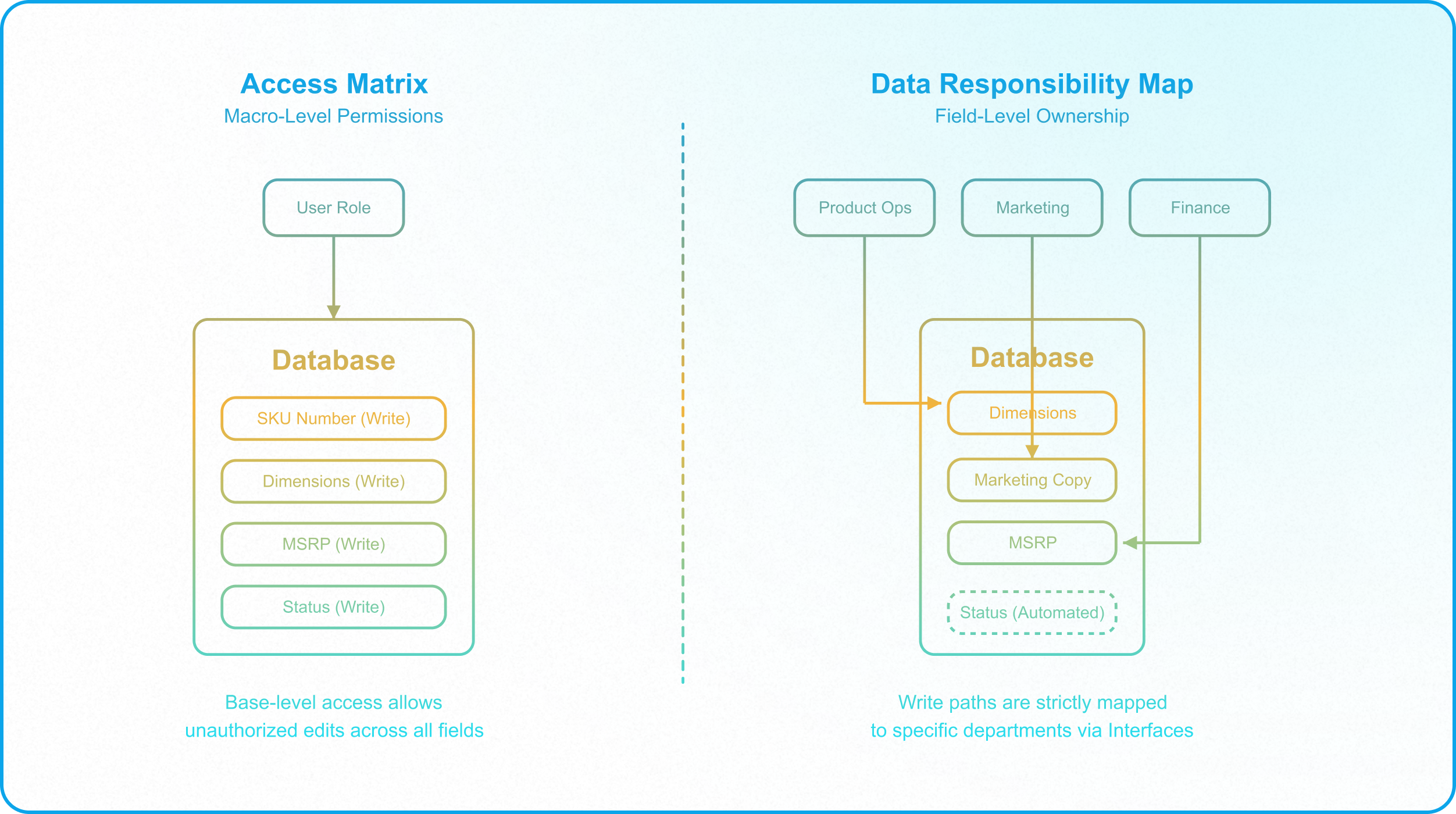
Designing the Data Responsibility Map
Before building in Airtable, you should document your data ownership. This means cataloging every field in your base and assigning a single department as the owner.
1. Attribute Inventory and Ownership Assignment
List all fields associated with a key business entity. Identify the department responsible for the accuracy of that data point. For a standard SKU Launch pipeline, the attributes are partitioned as follows:
|
Field Name |
Data Type |
Owner Department |
Collaborator Role |
Interface Input Gate |
|---|---|---|---|---|
|
SKU_Number |
Single line text |
Product Operations |
Systems Architect |
Creation Form |
|
Dimensions |
Number / Decimal |
Product Operations |
None |
Manager Input Screen (Locked) |
|
Marketing_Copy |
Long text |
Marketing |
Copywriter |
Marketing Copy Portal (Editable) |
|
MSRP |
Currency |
Pricing / Finance |
Finance Analyst |
Pricing Interface (Locked to Finance) |
|
Compliance_Cert |
Attachment |
Regulatory / Legal |
Compliance Auditor |
Compliance Audit Gate (Upload Only) |
|
Status |
Single-select |
Systems (Automated) |
Department Heads |
Webhook-Gated Action Button |
2. The Departmental Handoff Lifecycle
A record’s status is not a simple dropdown; it represents the operational state of the entity. You must define which roles are authorized to trigger transitions between states. For example, moving a SKU from Draft to Pending Legal Review requires verification of Product and Marketing inputs, while transitioning to Approved is strictly restricted to the Regulatory/Legal department.
This state-based governance aligns with the security principles detailed in Why Base-Level Permissions Create Enterprise Vulnerability. By restricting state changes, you prevent records from moving down the pipeline with incomplete or unvalidated data. This mirrors standard database role-based access controls by ensuring only specific roles can trigger transitions (see Airtable's guide on User Groups for group-based control).
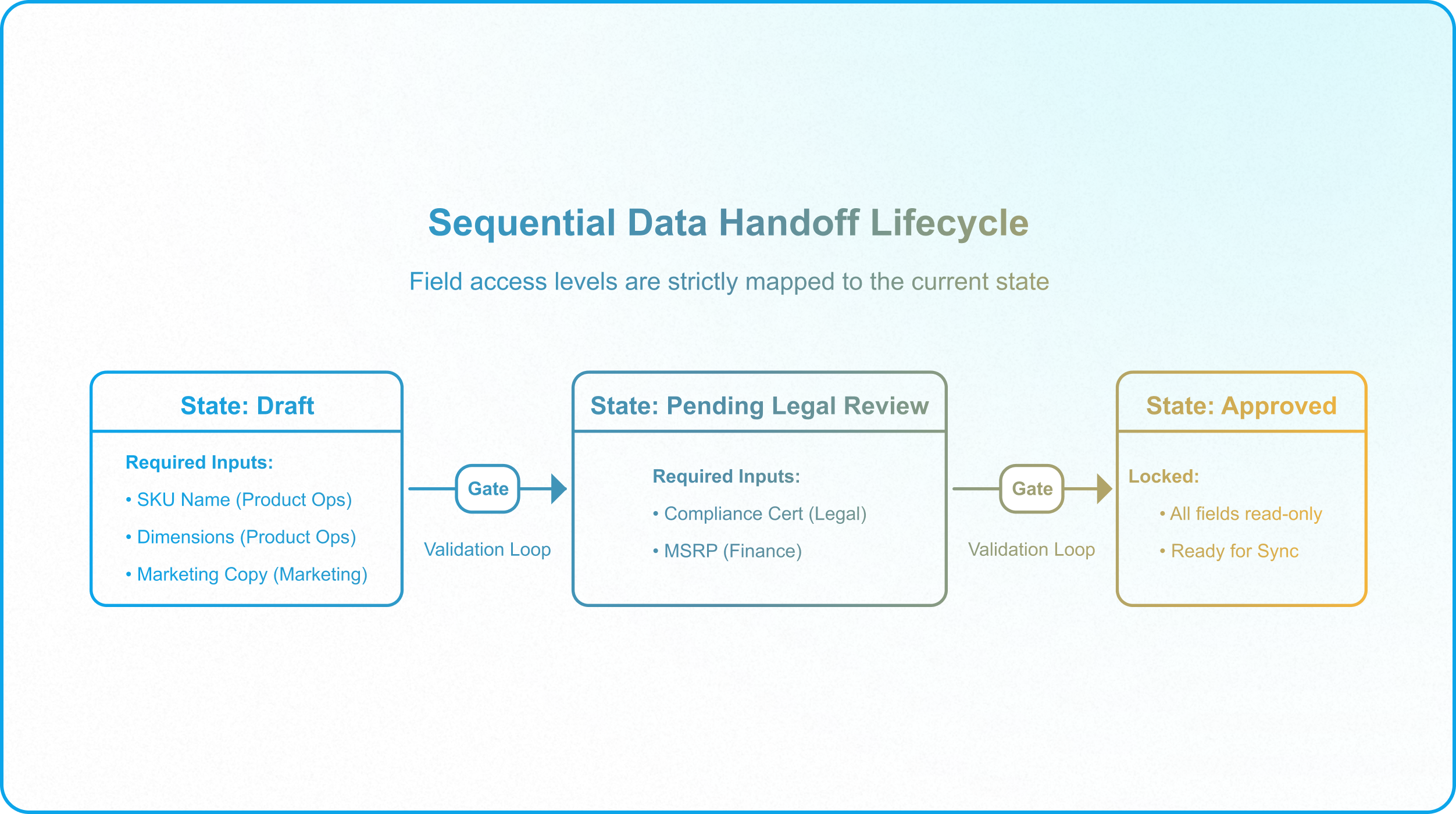
Translating Responsibility into Interface Pathways
Because Airtable does not natively support field-level write permissions for base collaborators, you must enforce your Data Responsibility Map using Airtable Interfaces. By sharing your base strictly via Interface-Only permissions, you keep users out of the raw database and guide them through controlled layouts.
Within the Interface Designer, you enforce the map through three layout configurations:
1. Granular Field Editability
When configuring record detail pages, you can set the edit permissions for individual fields to Specific Users or User Groups rather than inheriting base-wide access:
- The Marketing_Copy field is set to Editable only for the "Marketing Copywriters" user group. For the Finance and Product teams, it is rendered as Read-Only.
- The MSRP field is locked against edits for all users except those in the "Finance Analytics" group.
- Technical fields, such as database IDs and sync timestamps, are set to Read-Only for all roles.
2. Conditional Visibility Locks
To prevent users from modifying approved data, use conditional visibility settings to hide input fields dynamically based on the record's status. For example, when Status = 'Approved':
- The edit options for Dimensions and MSRP are hidden from the interface layout.
- The input fields are replaced with read-only text elements.
- The record is effectively frozen for standard operators, protecting downstream synced databases from receiving mid-cycle modifications.
3. Role-Specific Interface Portals
Instead of sending every department to the same dashboard, build specialized interface pages tailored to each department's daily work:
- Product Ops Portal: Shows product dimensions and packaging details. Financial and compliance fields are hidden from view to reduce visual noise.
- Compliance Audit Hub: Displays regulatory checklists, legal terms, and document upload slots. Marketing copy and pricing databases are read-only.
- Finance Ledger Dashboard: Displays inventory costs, margins, and sales metrics, isolated from daily design assets.
This ensures team members only interact with the data they actually own, preventing accidental updates.
Preventing Direct Base Access
When users encounter interface constraints or validation rules, they often try to find ways around them. If they have standard base-level access, they can simply click the "Open base" button inside the Interface. This gives them direct base access, allowing them to edit fields, copy-paste records, and edit locked data directly in the backend database—completely bypassing the rules you set up in the Interface.
To secure your base and enforce your responsibility map, you must block direct base access and use structural gates:
1. The Interface-Only Mandate
The most critical security step is to remove users from the collaborator list of the backend base. If users retain base-level access (such as Editor permissions), they can bypass all interface designs by opening the base. Restricting users to Interface-Only access prevents them from opening the backend base entirely, ensuring they can only interact with data through the pathways you build. For details on user invites, see the official Airtable Interface Designer Permissions Documentation.
2. Required Fields in Forms
To prevent users from creating incomplete records, disable the standard "Add Record" button in your interface. Instead, route all new record creation through dedicated Interface Forms. Forms allow you to:
To prevent users from creating incomplete records, disable inline record creation by toggling off the native "Add/delete" setting in your interface layouts. Instead, route all new record creation through dedicated Interface Forms. Forms allow you to:
- Make critical fields mandatory (such as blocking submission if a SKU is missing).
- Set character limits on text inputs.
- Restrict linked record selection to specific views (e.g., ensuring a new SKU can only be linked to an Active Vendor).
This structural intake aligns with the normalization and scaling principles detailed in Parent-Child Ownership Models.
3. Webhook-Gated Action Buttons for State Transitions
Native status fields are highly vulnerable. If you expose a "Status" single-select dropdown, any operator can change a record from Draft to Approved without validating the payload.
To secure this transition, set the status field to Read-Only and replace it with an Action Button that triggers an automation script. The script acts as a programmatic validation gate, verifying that all department-owned data is complete before executing the status change.
Creating a User-Facing Validation Loop
A common mistake when writing Airtable automation scripts is using throw new Error() when a field check fails. While this stops the script, it only displays a generic "Automation failed" error to the user in the Interface, offering no helpful details.
A better approach is to build a validation feedback loop:
- The script evaluates the record status and field completeness.
- If validation fails, the script writes the specific errors back to a dedicated [Validation_Feedback] text field in the database.
- The Interface displays this warning field dynamically using conditional visibility (only showing the text block when [Validation_Feedback] is not empty).
- If validation passes, the script clears the feedback field, flags the record as valid, and updates the status using a system service account.
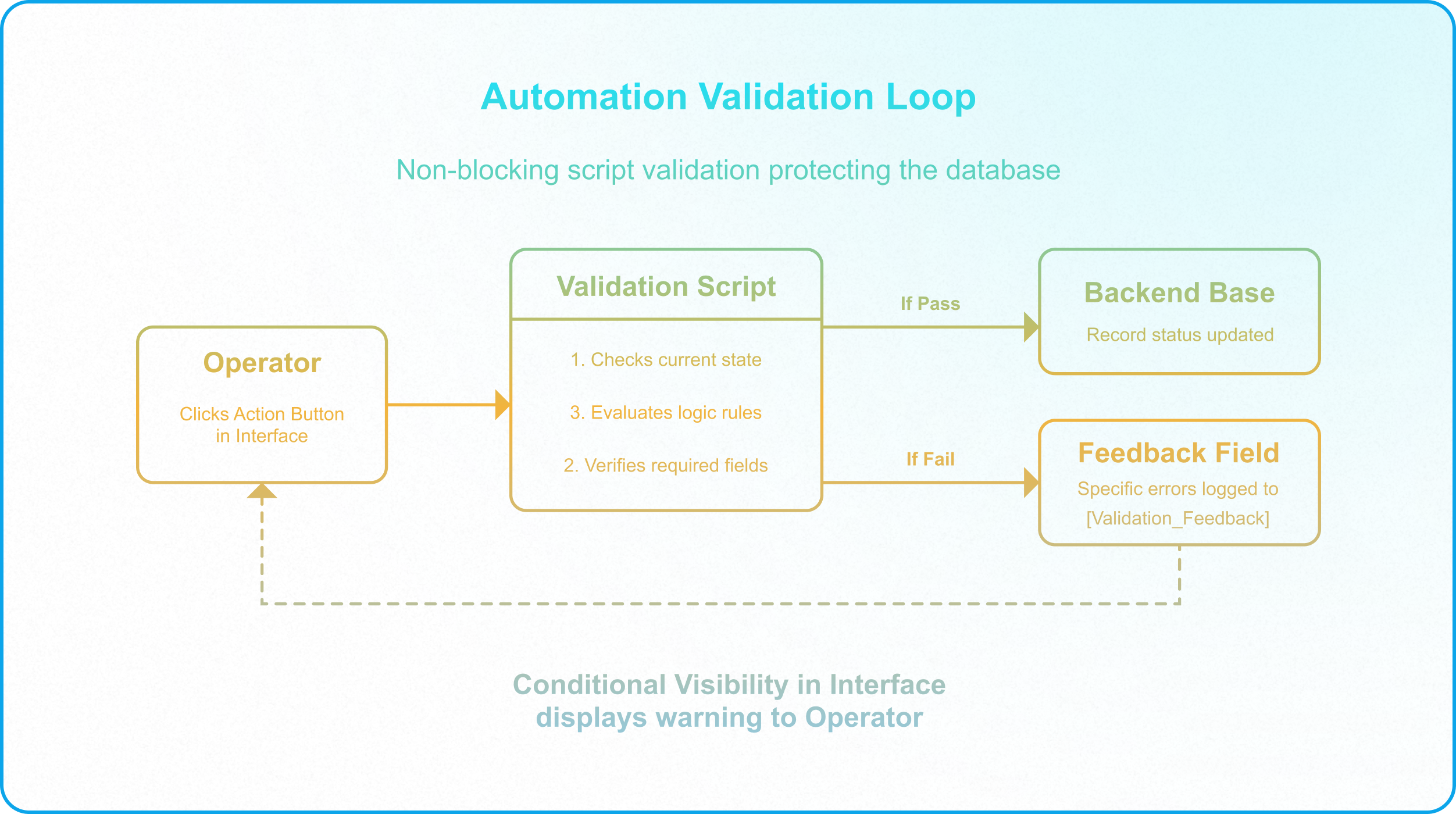
For performance, avoid using selectRecordsAsync() to scan the entire base for a single record. Instead, use selectRecordAsync(recordId, { fields: [...] }) to query only the triggering record. This keeps automation runs fast and prevents timeouts as your database grows.
-2.png?width=3680&height=6312&name=ray-so-export%20(1)-2.png)
By routing status changes through this script, you block manual bypasses, protect downstream synced bases, and show users clear error messages. For more details on automation script limits, see this Airtable community post on an Automation Scripting Guide.
Maintaining Long-Term Governance
A Data Responsibility Map must adapt as your workflows and schemas evolve. When you add new fields or integrations, you need to assign clear ownership and update your validation rules.
To manage these changes safely, establish clear change-management protocols. Before editing your database schema, adding new fields, or modifying field types, review the changes to ensure they do not break validation scripts or disrupt downstream synced bases.
If your organization is managing a complex Airtable ecosystem and needs to establish robust data boundaries, Schedule a Discovery Call with InAir. We audit active environments and implement governed, interface-driven architectures that secure your operational databases.